
Advanced Mac Cleaner is an unacceptable computer tool or program that every user wishes get rid from the Mac OS X system. It is deemed as invasive type of software that may be installed on the computer without user’s approval. This kind of malware is spreading on thousand of computers worldwide through Internet connection. Software exploits and vulnerabilities in Internet browser programs are believed to be exploited by Advanced Mac Cleaner to gain access on target computer. Malicious links from social media sites and spam email messages also contributes to the delivery of Advanced Mac Cleaner onto victim’s computer.
When this potentially unwanted program is run on the system, it can perform various actions to take control or certain system functions. Furthermore, Advanced Mac Cleaner does not provide entries to instantly remove its code when user is not comfortable with it. In addition, this unknown security and optimization tool may block your Internet access to security web sites preventing you from downloading removal tools and proper guide to delete Advanced Mac Cleaner from the affected computer.
Once Advanced Mac Cleaner is running on the computer, it will begin to display fake warnings and pop-up alerts stating several infections detected on OS X operating system. Obviously, these alerts are just ploy to deceive computer users and force them to pay for the Advanced Mac Cleaner registration code.
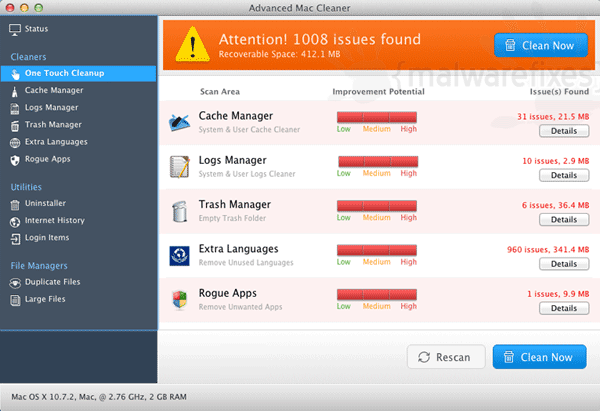
As you can see, Advanced Mac Cleaner program was made to steal money from you using various method of deception. Never pay for this worthless program and execute the removal steps to eliminate this threat from the computer right away.
Procedures to Remove Advanced Mac Cleaner
This section contains complete instructions to assist you in removing potentially unwanted program from Mac computer.
Instant Removal : Scan the Mac computer with antivirus program
Combo Cleaner is a trusted Mac utility application with complete antivirus and optimization features. It is useful in dealing with adware, malware, and PUP's. Moreover, it can get rid of malicious unwanted application like Advanced Mac Cleaner.
1. Download the tool from the following page:
2. Double-click the downloaded file, combocleaner.dmg and proceed with the installation.
3. The installation window will open. Please double-click or drag the Combo Cleaner icon to the Applications folder.

4. Proceed with the installation. When it displays the Software License Agreement, please click Continue, and then click on Agree in the confirmation window. Continue with the default installation.
5. The program should run automatically after installation. If not, open your Launchpad and click on the Combo Cleaner icon.
6. Wait until antivirus downloads its latest virus definition updates and click on "Start Combo Scan" to start removing Advanced Mac Cleaner and other issues on the Mac computer.

7. After the virus and disk scan processes, the tool will display the results. Click on Remove Selected to start cleaning the computer.
To fully optimize the features of antivirus and privacy scanners, users may have to upgrade to the premium version.
If you are comfortable enough to manually delete the unwanted application and any other potentially harmful objects associated to it, please move on to the next set of instructions.
Step 1 : Quit Advanced Mac Cleaner Process
Before proceeding with the steps below, please close the Advanced Mac Cleaner window if it is open.
1. Go to Launchpad > Other folder, open the Activity Monitor.
2. Select the process you want to quit.
3. In the upper part of the window, click the Stop button.

4. Click on the Force Quit button.
5. You may now delete or remove files that belong to Advanced Mac Cleaner. Proceed to the next steps.
Step 2 : Delete Advanced Mac Cleaner Login Items
Some malware also installs login items into compromised accounts under System Settings. This object automatically runs Advanced Mac Cleaner during user log in.
1. Go to your Dock and open System Settings.
2. Select and click General from the sidebar.

3. Next, click on Login Items on the right panel to see if there are malicious items.
4. In the "Open at Login" area, review the items and select Advanced Mac Cleaner or any suspicious entry.

5. Click on the minus [-] button and confirm your actions.
As stated, the creation of Login Items or Profiles is done on a case-to-case basis. Some malware may add their entries to this section, but others are not concern with making one. So, if the Advanced Mac Cleaner Login item is not present, please continue with the succeeding steps.
Step 3 : Delete Advanced Mac Cleaner Application
1. Go to Finder.
2. On the menu, click Go and then, select Applications from the list to open Applications Folder.
3. Find Advanced Mac Cleaner or any unwanted program.

4. Drag Advanced Mac Cleaner to Trash Bin to delete the application from Mac.
5. Next, go to the Dock, right-click on the Trash icon, and click on Empty Trash.
Step 4 : Delete Malicious Files that have installed Advanced Mac Cleaner
1. Go to your Finder. From the menu bar, please select Go > Go to Folder.
2. Input the following string and press Enter on the keyboard.
~/Library/LaunchAgents

3. You will now see a hidden folder named LaunchAgents. Take note of the following files inside the folder:
- com.Advanced Mac Cleaner.plist
- unknown.service.plist
- unknown.system.plist
- unknown.download.plist
- unknown.update.plist
4. The term unknown is just a representation of the actual malware name. Attackers may use the following file names:
- AMC, SearchAssist, Shoppy, (random characters).plist
If you cannot find the specified file, please look for any unfamiliar or suspicious entries. It may be the one causing Advanced Mac Cleaner to be present on your Mac. Arranging all items to see the latest ones may also help you identify recently installed unfamiliar files.
5. Please click on "Show items as..."

6. To arrange the items in chronological order, click Date Modified.
7. Drag all suspicious files that you may find to Trash.
Take note of all the suspicious files, as you may also delete the same item in another folder as we go on.8. Please restart the Mac computer.
9. Open another folder using the same method as above. Copy and paste the following string to easily locate the folder:
~/Library/Application Support

10. Select any suspicious items that you have noted previously. Drag them to the Trash.
11. Repeat the process in the following non-hidden folders (without ~):
/Library/LaunchAgents
/Library/LaunchDaemons
/Library/Application Support
12. Lastly, go to your Finder > Go and open the Applications folder. Look for subfolders with the following names and drag them to Trash.
- AMC, SearchAssist, Shoppy, (random characters)
Optional : For locked files that cannot be removed, do the following:
1. Go to Launchpad > Other folder, open the Activity Monitor.
2. Select the process you want to quit.
3. In the upper part of the window, click the Stop button.
4. Click on Force Quit button.
5. You may now delete or remove the locked file that belongs to Advanced Mac Cleaner homepage hijacker.
Step 5 : Run another Scan using Malwarebytes for Mac
Use Malwarebytes for Mac to do another scan to make sure the machine is already clear of viruses, malware, and adware. This efficient anti-malware application allows you to detect things that other security software was unable to recognize.
1. Download Malwarebytes for Mac from the link below.
2. Locate the downloaded Malwarebytes-Mac.pkg and install it with the default settings.
3. Run Malwarebytes for Mac. It will check for updates and download the most recent version if one is available. This is necessary for finding recent malware threats, including Advanced Mac Cleaner.
4. Once you are on the Malwarebytes dashboard, please click on the Scan button to start scanning your Mac computer.

5. After the scan, Malwarebytes for Mac will display a list of identified threats, and Advanced Mac Cleaner is surely part of it. Be sure to select all items in the list. Then, click the Remove button to clean the computer.
System Compatibility Notice

To provide you with easy and accurate methods, the commands used in the guide are common, useful, and tested. We ensured that our tutorial to get rid of Advanced Mac Cleaner is compatible with the majority of Mac operating systems. Please let us know via email or the comment section below if you run into any incompatibility when using this tutorial. We will be pleased to reply and make the required corrections.

I hope I get this app to make my computer faster.
Warner, I can locate it in the OS X application file but I am unable to dump it in the trash. How did you do that?
The applications file is inside OS X . Once you find OS X you can just click on it to find the applications file.
I leave OS X on the ” desk top” so I can easily check the applications file for AMC.
Then just click on OS X and open Applications. If AMC is there just dump it in the trash.
It only takes a few seconds, once you are set up to do it. I did spend a long time getting rid of AMC
the first time. I hope this helps. AMC is very annoying. Where they located any way? Russia?
(Advanced Mac Cleaner) AMC or short. AMC infested your applications file. If you can figure out how to open your applications file, then just move AMC to trash. Other wise every time you turn on your computer AMC comes up and you have to click NO Thanks to get rid of it. I don’t want to click NO Thanks. I want to click get the hell off of my computer and never come back. But AMC doesn’t have a button for that.
I installed Malwarebytes anti-Malware and found 1 folder and 2 files in quarantine. What do I do next? If I delete the files from quarantine does it send them to the trash or just remove the names from quarantine? Do I need to drag the files to the trash?
Thanks for your help.
JJ
Nothing works to reveal where either the bogus Flash updates or Mac Cleaner is hiding. It’s there, however. It just opens as new pages in Safari out of the blue.
If you have done all the instructions above and you are still seeing its presence, maybe there are background applications that you need to remove manually.
1. Open the Go menu in the Finder and choose “Go to folder…”
2. Input this string on the field:
~/Library/Application Support
3. You will see a bunch of files and folders.
4. Look for the “amc” folder and drag it to the Trash bin (Delete).
5. Again, look for the Advanced Mac Cleaner folder and drag it to the Trash.
6. Reboot your Mac.
7. Once the computer restarted, Empty your Trash bin.
This isn’t on any of my browsers. It pops up every time I switch on my computer. I can’t do the usual thing, as I have to force quit before I can use the toolbar, and then it doesn’t show up, therefore, escaping the delete. Help!