
“Your windows (Microsoft) computer has been blocked” is a pop-up that purported to be a valid warning of legitimate program. In reality, this is a fake web site that tries to deceive computer users. It issues fake warnings and alerts prompting visitors to call a number and seek for technical support. Be aware that programs and services offered are not free. The fake warning was created to scam computer users and steal money through fraudulent online transactions.
When your browser is redirected to “Your windows (Microsoft) computer has been blocked”, or pop-up appears as you browse the Internet, it may mean that your computer is infected with malicious code. On the contrary, your PC may be clean, and the appearance of the phony pop-up alert was just caused by an infected web site you are viewing. Remember that the site “Your windows (Microsoft) computer has been blocked” is malicious. Thus, you must avoid it to keep your computer safe and away from adware or malware threats.
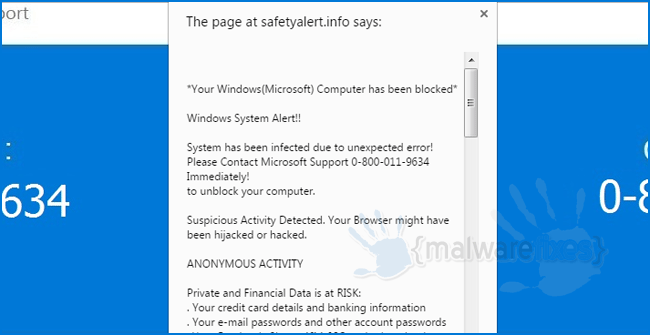
If malicious files obtained from software piracy websites are executed, you may instantly acquire unwanted codes that may cause changes on the computer. Moreover, add-ons and extensions brought by this site can do modifications on the browser that cause pop-up ads, redirects, home page hijacking, and other unsolicited actions. On the other hand, if you call the provided number, your phone account will be billed an unexpected amount. The message you will see from this malicious pop-up reads:
Your windows (Microsoft) computer has been blocked
Windows System Alert!.
System has been infected due to unexpected error! Please contact Microsoft Support 0-800-011-9634 immediately to unblock your computer.
In order to prevent “Your windows (Microsoft) computer has been blocked” attack, you must take extra caution when visiting web sites, particularly unknown ones. As much as possible, avoid downloading unfamiliar freeware or shareware that are commonly the carrier or adware and other malicious programs.
To completely remove “Your windows (Microsoft) computer has been blocked” adware and stop the pop-up ads, you may have to scan the PC with legitimate security tools and virus removers. Removing any relevant software also helps eliminate unwanted items on the computer.
"Windows computer blocked" Removal Procedure
In this section, we will provide effective guidelines to get rid of the threat from an infected computer. To automatically remove fake pop-up alert, you may download the recommended scanner. For comprehensive instructions, please execute the manual step-by-step procedures.
Instant Removal : Scan the computer with antivirus program
Combo Cleaner is a trusted computer security and optimization tool equipped with a powerful virus and malware detection engine. This program can get rid of bogus pop-up and similar threats, whether it has infected PC, Mac, Android, or iOS.
1. Download the application from the following page:
2. Save the file to your preferred location.
3. Double-click the downloaded file CCSetup.exe and install with the default settings.
4. At the end of the setup process, click Finish to run Combo Cleaner.
5. The tool will update the database file; please wait for this process to complete.
6. To begin checking for threats like "Windows computer blocked", click on the Start Scan button. Wait for this scan to finish.

7. At the end of the scan process, click on Remove all threats to delete "Windows computer blocked", including all harmful objects from the computer.
To fully optimize the features of antivirus and privacy scanners, users may have to upgrade to the premium version.
Please continue with the succeeding removal procedures if you are comfortable manually getting rid of the pop-up and malicious items linked to it.
Manual Removal : Steps to get rid of fake pop-up warning
The steps below will guide you to manually remove the fake pop-up without having to purchase a recommended virus scanner. We have tested the procedures; hence, the attackers may make modifications overtime. As a result, terms, names, and images in the guide may differ from what users are seeing recently.
The procedure may require you to close the browser or restart the computer; therefore, we are suggesting to Bookmark or Print this page. You must be logged in to Windows with an Administrator account to be able to execute some of the tasks. Check here to know if you are currently using an account with Admin rights.Step 1 : Delete Suspicious Browser Extension and Notifications
Normally, "Windows computer blocked" pop-ups will start to bombard internet browser screen with pop-ups if web user was deceived to click “Allow” button that triggers the said website to send push notification. To stop "Windows computer blocked" from showing the pop-ups, please execute the procedures below.
Google Chrome Notifications
1. On Google Chrome browser, type or copy and paste the following in the address bar and press Enter on the keyboard:
chrome://settings/content/notifications
2. Scroll down to the list under "Allowed to send notifications" section and look for "Windows computer blocked".
3. Click ellipses icon (3-dot) beside "Windows computer blocked" list to reveal the options.

4. Click on Block or Remove to stop "Windows computer blocked" from displaying pop-up ads on Google Chrome browser.
5. Please restart your Google Chrome browser.
Remove Malicious Extension from Google Chrome
1. Open the Google Chrome browser.
2. Input the strings below in the address bar and press Enter on the keyboard:
chrome://extensions/

3. Look for malicious browser extension and remove it from Google Chrome.
Alternative Method to Clean Up Google Chrome browser
Not all browser threats are the same. Some cannot be removed by deleting relevant extensions and codes. In this instance, resetting the browser to its default configuration is the best solution. If "Windows computer blocked" is still bothering you after completing all the steps above, please execute the procedures below to proceed with the Google Chrome Safety Check.
1. Open the Google Chrome application.
2. Type or copy and paste the string below in the address bar. Then, press Enter on the keyboard:
chrome://settings/privacy

3. Next, please click the Go to Safety Check and review your current security status.
4. Remove any suspicious items and follow the safety recommendations of Google Chrome.
This feature of Google Chrome aims to find malicious websites and harmful software. If you are unable to delete "Windows computer blocked", the other option is to Reset Google Chrome settings to their original defaults. See more details on this page.
Microsoft Edge Notifications
1. Open the Microsoft Edge browser. Type or copy and paste the following in the address bar and press Enter on your keyboard:
edge://settings/content/notifications

2. Scroll down to the Allow section and select "Windows computer blocked".
3. Click the More Actions or ellipses icon (3-dot) to reveal the options.
4. Select Remove from the options to stop the malicious website from using the push notification feature. Repeat the same procedure for other websites that keep displaying pop-up advertisements.
Remove malicious extension from Microsoft Windows and Edge Browser
1. On your keyboard, press Windows Key + R. Type the appwiz.cpl command and click OK.

2. The Program and Features window will open. Arrange the list in a chronological manner, with recently installed applications on top. To do this, click on the 'Installed On' column.

3. Look for a malicious item or a recently installed suspicious entry in the list.
4. Click on Uninstall to remove it from the Windows system.
If "Windows computer blocked" is still present on the browser and the pop-ups persist, another option is to remove relevant adware from the browser settings.
5. Open the Microsoft Edge program.
6. Input the following string in the address bar and press Enter on the keyboard:
edge://extensions/

7. Look for and Remove or Disable malicious items from the Installed Extensions area.

8. You may now close the window and restart the Microsoft Edge browser.
Mozilla Firefox Notifications
1. On Mozilla Firefox browser, type the following in the address bar and press Enter key:
about:preferences#privacy
2. Scroll down to the Permissions area and look for Notifications.

3. Click the Settings button aligned with the Notifications.
4. Look for "Windows computer blocked" entry and click the Remove WebsiteStatus button.

5. Click on Save Changes and restart Mozilla Firefox and check if "Windows computer blocked" pop-up is gone.
Uninstall Malicious Extension from Mozilla Firefox
1. Open the Mozilla Firefox browser.
2. Type or copy and paste the strings below in the address bar and press Enter on the keyboard:
about:addons

3. Click on Extensions from the sidebar menu.
4. Look for an entry malicious extension and Disable or Remove it from the browser using the options button.
After deleting the malicious browser extension, it is expected that pop-ups and other troubles will be gone from the Mozilla Firefox browser.
Step 2 : Scan and Delete Adware with AdwCleaner
In addition to the procedure, we suggest scanning the computer with AdwCleaner tool. Possibly, there are some traces of malware on the browser that were not deleted during the preceding steps. This tool will scan the computer and check for presence of malicious applications.
1. Follow the link below to download the tool called AdwCleaner.
2. When the download has completed, please close all running programs on the computer, especially browsers affected by "Windows computer blocked".
3. Browse the location of the downloaded file and double-click on adwcleaner.exe to start running the tool.
4. If Windows displays a prompt saying, "Do you want to allow this app to make changes to your device?" click Yes to proceed.
5. On the AdwCleaner dashboard, click on Settings.

6. While in the Settings window, please turn On the Reset Chrome Policies, Reset IE Policies, and Reset Winsock.
7. Go back to the Dashboard and click the Scan Now button.

8. AdwCleaner searches the computer for malicious programs, extensions, plug-ins, adware, and any items that may be associated with "Windows computer blocked".
9. Clean or Remove all suspicious and harmful items identified after the thorough scan.
10. AdwCleaner will then prompt an option to run another repair, which will reset Winsock and other settings. Please click the Run Basic Repair button.

11. A message will appear stating that "All processes will be closed..." Please click Continue.

12. After the cleanup procedure, rebooting the computer is required to finalize the removal of "Windows computer blocked" as well as other detected threats.
Check if your internet browser application is no longer being bothered by fake pop-up. If the browser hijacker still persists, please continue with the steps below to reset internet programs to default settings.
Optional : Reset Internet Browser Program
Cleaning your internet browser from clutter and unwanted add-on/extension is a must when dealing with fake pop-up alerts. The procedure below discusses on resetting various browsers to their default state.
Restore Google Chrome to Default Settings
Resetting Google Chrome to its default settings is helpful in deleting hard-to-remove extensions. This method is highly advisable to perform if you have difficulty removing unwanted extensions.
1. Open the Google Chrome internet browser.
2. On the address bar, type chrome://settings/reset and press the Enter key.
3. Click on Reset Settings on the sidebar and choose Restore settings to their original defaults.
4. On the confirmation window, click the Reset settings button to clear all malicious entries.
5. Close the existing tab and restart Google Chrome. That should have removed the malicious extension and associated objects.
Reset Mozilla Firefox to Default
This section describes how to remove unwanted extensions from Firefox that may be related to the fake alert. This process can fix many browser issues by restoring Firefox to factory settings without affecting your essential information (bookmarks, browsing history, passwords, and Internet cookies) on the browser. If you desire to remove only a specific extension, please see the manual removal of add-ons from Firefox.
1. Input the string about:support on the Firefox web address and press Enter on the keyboard.
2. You will now see the Troubleshooting Information page of Mozilla Firefox.
3. You will notice a section in the upper-right corner of the screen stating, Give Firefox a tune-up. Click the Refresh Firefox button.
4. If a confirmation window appears, click Refresh Firefox to continue.
5. Firefox browser will close and start the resetting process. When done, it will display a list of restored data. Phony pop-up warning should be gone by now. Click Finish to open a fresh version of Firefox.
Restore Microsoft Edge to Default Settings
1. Open the Microsoft Edge browser.
2. On the address bar, please input edge://settings/reset and press Enter on the keyboard.
3. Once you are on the Reset Settings page, click on Restore settings to their default values.
4. A confirmation window will appear; click on the Reset button to continue.
Your data, like favorites, bookmarks, and history, will remain in the browser. However, this process will delete add-ons related to fake pop-up alert and other unknown objects.
System Compatibility Notice

We ensured that our method to get rid of "Windows computer blocked" is compatible with the majority of Microsoft operating systems (Windows 7, Windows Vista, Windows 8, Windows 10, and Windows 11). To prevent complicated steps, the commands used in the instructions are common, useful, and tested. If you encounter any compatibility problems when following this tutorial, please message us or leave your comment below, and we will reply and make the required modifications.
Originally published on December 23, 2015 at 00:08

This crap has obviously been going on a long time. My McAfee does not stop it. Call to Microsoft went nowhere when I was unwilling to pay. Seems like they should be interested in stopping thieves impersonating them. Very, very frustrating.
It happened to me today, I got a message from Microsoft, so I called the number displayed, as always it was a person from another county, an then it hit me when they asked for remote control of my computer, they asked for a zip code where a Microsoft store was, there are in which they said there was a store is in my small town and I know for sure that no stores there, so I Googled it online on how to restore my computer ( CTRL ALT DELETE) THEN RESTART. So being the person that I am, I called back an told them that they were common thieves that was out to take people’s money. I hate dishonest people! But they got my point in details.
I have Malwarebytes and downloaded Microsoft Malicious Software removal tool full scan. Neither of them found this and therefore neither quarantined or in anyway I did it.
A recorded warning took over my PC and showed a message , supposedly from Microsoft warning my PC had been virally infected allowing others to seize financial information, passwords. And if I didn’t call 888-976-6204 within 5 minutes they would shut me down and notify the Microsoft authorities. When I called them they said they were with Microsoft Corp. The gal & guy were from India using Anglo names. This happened 9/18/2018
Go with the mouse right-down on the screen and “switch to Desktop” (that little part right in the corner, no to see with your eyes but it works if you try with the mouse) if you want to finish your work on the site you intended to go. The site with the blocking warning is also minimized and you can choose that one that you need.
BUT MORE IMPORTANT:
Ctrl +Alt+Del
Choose THE BROWSER that you have opened ( and where that crap appeared), close the “red-ADOBE” FlashPlayer (will be reloaded if you need it), than choose your BROWSER on the list, “open” the list of opened-sites, mark the site with deceptive message and click “shut-down” (right-site, down corner of the Manager.
The site with the “Alert” gets “killed”, has no power to resist to this command.
The computer works further and the sites opened in your browser are full-operating. They were so all the time but you couldn’t access them because of that crap. An ABP with the possibility to introduce your own list of such crap-sites, is that AdBlock Plus. cannot stop all of them but you may put the sites on a blacklist “for the next time”. HOW IT COULD BE MADE, is explained very clear on the AdBlock Plus site.
I got this error and downloaded Baidu antivirus by the way Terminator is not my real name.
I have 268d3 on my Dell and it wont let me do anything but a hard shutdown. Anyone know how I can fix this mess? I’m a beginner, second stage, which means, I can follow directions and do things if I know where to go to do these.
Thank you. I have Windows Professional 7.
My friends computer will not do anything can someone please call me 5402807227
I got this message and tried to close it but no result. I just pressed and held the shut down button until the computer turned off. Restart showed computer did not shut down correctly and just click start normally. Browser showed a restore previous page from shut down clicked that. I think the clear your browser cookies and or reset is probably a good idea.
What do you do if you paid them?
I just had this happen to me and like a fool I phoned the number. I hung up before I downloaded anything, but the “free” phone call cost me over 10 pounds. It was to India, though…….. What I ended up doing was turn off my computer and remove the battery. I left it for about 10 minutes, turned it back on and everything seems fine. Am doing a scan now.
Malwarebytes ( the free version ) found nothing while the “alert” was still active. ( Win10) I closed Edge
via Task Manager and then opened Google window which had several windows I had already opened.
Then when I opened Edge, the “alert” was gone. I need to find a more powerful app or software that can power thru this alert thing. I had visited a technical websites post archives when the “alert” came up.
Okay so I received a phone call that I needed to fix my account today to prevent it from becoming blocked tomorrow from an unknown number from Microsoft. I don’t know if it’s a scam or if there is anything I can do.
Guys all u need to do is delete all your history and cookies from the infected browser and exit the browser then it should be back to normal. You don’t need to anything else.
If you are infected with this crap, I would advise you to download and install Malwarebytes. It’s free and when I ran it, it detected 332 threats on my computer. Malwarebytes removed all the threats for free. I think a program called Adware File finder is the program that I used once that caused the problem. So, never use that program!
I’ve tried every method to get rid of this piece of crap. Why can’t someone do anything to stop these creeps? It’s irritating as hell when this damn notice pops up. I lose all my files when I’m working on my animation programs because I have to restart my computer without any chance of saving the files. These cyber criminals should be locked up and never allowed to use a computer again.
I get this about 3x a month. Simply turn off computer, wait a few minutes it gone with no damage.
The best thing to do is try bringing up the task manager (Control-Alt-Delete) whilst the pop up is still being displayed on your browser. Then find the processes Tab in the task manager and then the APPS sub heading (this is using windows 8.1 fyi)
Select your browser eg: Firefox etc. and click the end task at the bottom right hand corner of the task manager. Once exited out of the browser it will take you back to your desktop. Now start a full anti virus search using malware bytes or your own preferred software. Once completed – be careful when clicking back onto your browser as it will remember the previous closed down pages and may open the Microsoft pop up locked account again. Try right clicking your browsers icon and select start a new session or open new tab, new page. Hope this helps out. Remember there’s a truck load of tutorials on Youtube in regards to problems like this.
Cheers, Aleco :)
I just got this and it shut my computer down and is requiring a weird password that I don’t have. Can literally anyone help me with this? Any tiny bit of help would be appreciated
I got this today and it’s not letting me do anything. I don’t have any money so I can’t exactly purchase a virus scanner
@Wil, to close the warning, you have to end the application or browser. To do this, press CTRL+ALT+DEL on keyboard. Click on Start Task Manager. Select the application (IE, Chrome, Firefox). Then, click on End Task.
Hello. What if I can’t close the warning? What should I do ? Thanks
So what do you do if you got scammed?
”Be aware that programs and services offered are not free. ”
But of course, as always the phone number to call is!!!
Because they want to capture your phone number even if blocked!!!!!
I got this yesterday on my HP laptop. Being naïve and not thinking it through, I called the number because I literally could not do anything on the computer, even turn it off. Everything seemed legit until they wanted to charge me $350 to repair the computer and remove the malware. I hung up and will try this.
I got this last night but my Chromebook doesn’t have Microsoft products installed on it. I will try running these tonight, if that doesn’t work, not sure what’s next. Advice?
I ran all three of these in the exact order when this malware infected my Microsoft edge browser with no luck. I have ran multiple virus removal programs and they all come back clean, I have also searched my C drive and windows directory and found no weird files associated with this malware. When I open Microsoft edge it still starts up this malware every time with audio. Chrome works fine but I want to clear everything from my computer, any more suggestions, is there a way to reset Microsoft Edge, I thought it was built into Windows 10 so there is no way to remove and reinstall?